Sample 03 · Knowledge transfer and accessible documents
Accessibility workflow administrator guide
Demonstration sample by Gridex Inc. — synthetic data; not a State of Minnesota system
Configure notification text, recipient groups, and reviewer assignments through SharePoint lists without editing the Power Apps interface or Power Automate flows. This guide demonstrates a proposed maintainable configuration pattern using fictional lists and records; verify actual list names and permissions during discovery.
Before you change configuration
Audience: administrators responsible for the accessibility exception workflow. Use a development or test environment first. Production changes require the agency’s change process and the correct site permissions. These instructions do not grant access or modify a live tenant.
- Confirm the environment and the SharePoint site. Never infer production access from a link in a notification.
- Open the list from Site contents or a trusted bookmarked list address. Use Tab to reach a control, Enter to activate it, and Escape to dismiss a dialog.
- Record the item ID, current values, version, reason for change, and change ticket. Confirm list version history is enabled.
- Identify the configuration owner and a backup reviewer. Test with synthetic requests and an approved test recipient group before publishing.
Edit notification templates
The demonstration NotificationTemplates list separates message text from workflow logic. A flow reads an active template by NotificationKey, substitutes approved placeholder values, and resolves RecipientGroupKey using the NotificationGroups list. A missing or duplicate active key must stop dispatch and alert an administrator.
| Field | Example and purpose |
|---|---|
| NotificationKey | DACReviewRequested — stable key used by the flow |
| Subject | Review needed for {{RequestName}} |
| BodyText | Request {{RequestId}} is ready. Risk: {{RiskScore}} ({{RiskLevel}}). Review by {{DueDate}}. |
| RecipientGroupKey | AgencyDAC — references a configured recipient group |
| IsActive | Yes — one active item for each notification key |
- Open NotificationTemplates and locate the item by NotificationKey. Select its name, then choose Edit. Avoid bulk grid editing for a single change.
- Change Subject and BodyText using clear, plain language. Preserve approved placeholder spelling and double braces. Do not put credentials, sensitive personal information, scripts, or untrusted HTML in a template.
- Choose the RecipientGroupKey and check IsActive. Save the item. Reopen it and confirm your values and version.
- Run a synthetic request through the relevant review stage in test. Verify the resolved subject, body, risk information, and review link with the intended test recipient.
- Have a second administrator review the result. Apply the approved change in production and record the item version and test evidence.
Use approved placeholders
| Placeholder | Source and formatting |
|---|---|
| {{RequestId}} | Stable exception record ID |
| {{RequestName}} | Request title; treat as plain text |
| {{RiskScore}} | Recorded score; do not recalculate in the template |
| {{RiskLevel}} | Recorded risk label; include as text, not color alone |
| {{DueDate}} | Explicit date, for example April 15, 2027 |
| {{ReviewUrl}} | Authorized review link; do not change record permissions |
Unknown or unresolved placeholders must block sending in this proposed pattern. Show the configuration error to an administrator; never send raw braces or silently drop risk or deadline information. Encode substituted values as text when a flow renders HTML. Use a descriptive link such as “Review request DEMO-2026-017”; do not expose long tracking URLs as link text.
Configure recipient groups
The demonstration NotificationGroups list controls who receives each notification. Group keys are independent of message text. Maintain separate test groups and resolve agency specific membership before dispatch. A notification recipient is not automatically authorized to read or approve a request.
| Field | Example and purpose |
|---|---|
| GroupKey | AgencyDAC — unique group identifier |
| AgencyKey | DEMO-LEARNING — scopes membership |
| Recipients | Fictional test reviewer account or approved directory group |
| IsActive | Yes — current membership may be used |
- Open NotificationGroups and find the GroupKey and AgencyKey used by the template. Verify current membership and the intended review stage.
- Choose Edit. Add or remove approved recipients using the list’s person or group field. Save and reopen the item.
- Verify the flow resolves the intended test membership. Check that former reviewers do not receive the notification and that newly assigned reviewers can reach only authorized records.
- Test a missing or inactive group. Dispatch must stop with a configuration error instead of falling back to a broad audience. Record the version and reviewer sign off.
Maintain DAC and signer assignments
The demonstration WorkflowAssignments list maps each agency and role to an active person or approved directory group. In the proposed pattern, flows look up assignments at the review stage rather than hard coding email addresses. Match the existing data model and permission behavior during discovery.
| Field | Example and purpose |
|---|---|
| AgencyKey | DEMO-LEARNING |
| RoleKey | AgencyDAC, MNITDAC, OfficeOfAccessibility, or AuthorizedSigner |
| Assignee | Fictional reviewer account or approved group |
| IsActive | Yes — exactly one valid active mapping per agency and role in this demonstration |
- Confirm the agency’s authorized designation for the new DAC or signer. Changing a list item does not itself create signature authority.
- Find the AgencyKey and RoleKey in WorkflowAssignments. Record the old assignment and version; edit the Assignee and IsActive values.
- Save and test a new synthetic request through agency DAC and MNIT DAC review, Office of Accessibility final review, and authorized signer approval. Confirm each stage reaches its designated role.
- Separately verify SharePoint item permissions with authorized test accounts. Check both new and former assignees. Do not grant site wide access as a shortcut.
- Review requests already awaiting approval. Follow the approved reassignment or resend procedure; do not assume changing the list updates a running flow. Record all affected request IDs.
Verify the change and recover safely
- Read the notification in plain text and HTML. Verify heading order, descriptive link text, visible risk level, and explicit dates.
- Navigate the changed administration interface with a keyboard and screen reader. Confirm control names, focus location, and error instructions.
- Check display at 200 percent zoom and with a narrow window. Do not communicate review outcomes by color alone.
- Test missing placeholders, duplicate active keys, inactive groups, and unauthorized accounts. Keep failures in the test environment.
- If a change fails, use list Version history to inspect and restore the approved item version. If version history is unavailable, restore the recorded approved values and obtain a second review.
- Retest the repaired configuration. Correct already dispatched notices through the authorized resend process; restoring a template does not recall mail.
Training exercise
In a test list, change the DAC review subject to include {{RequestName}} and {{RiskLevel}}. Route it to the test AgencyDAC group. Replace the test AuthorizedSigner assignment. Submit a synthetic request, confirm the complete review chain, and then restore the original configuration. Success means correct recipients, no unresolved placeholders, authorized record access, and recoverable versions.
Reference and handover
Keep a configuration register with list URLs, internal field names, approved placeholder names, key uniqueness rules, flow lookup behavior, permission owners, and rollback steps. Hand over the current test evidence and unresolved issues to the application owner.
Basis: MNIT Accessibility Exception Workflow RFP section 2; Addendum 4 questions 5, 6, 12, 13, 14, 15, 19, 20, 21, 35 and 58. This guide illustrates proposed enhancements and does not claim access to the State’s existing lists or completed Microsoft tenant integration.
Configuration pattern illustration
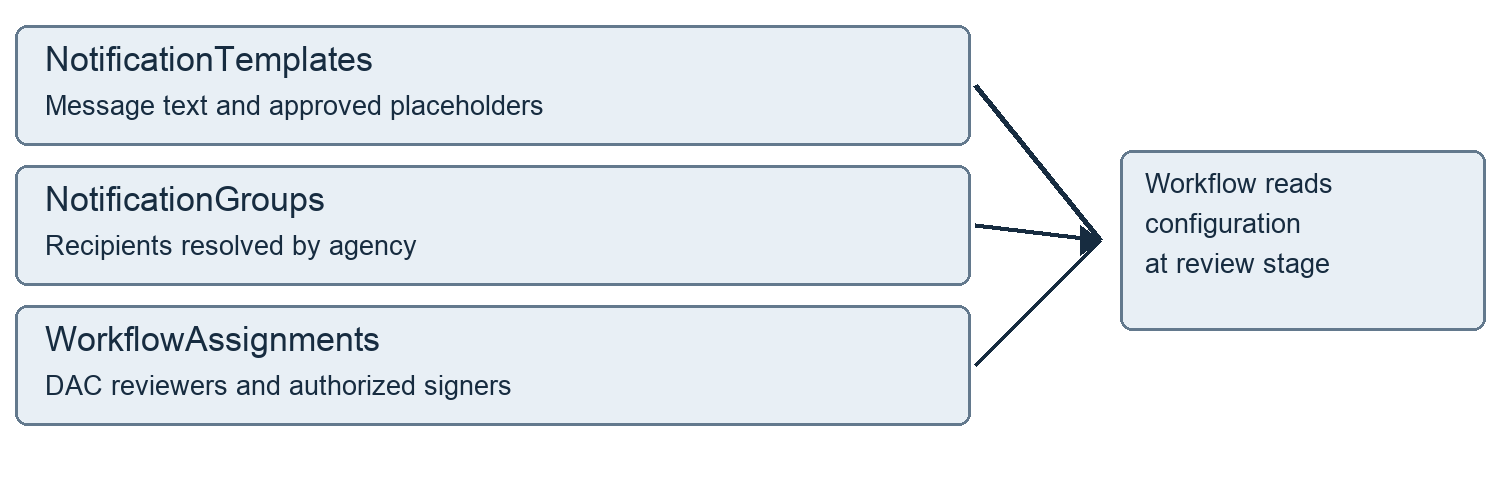
The diagram summarizes the three demonstration lists described above.